This post may contain affiliate links, which means I may earn a small commission (at no extra cost to you) if you make a purchase.

Canva is an amazing resource. And that’s coming from someone with over 10 years of real graphic design experience! As user-friendly as it is though, it’s so easy to get caught up in the different elements and templates. That’s exactly why I want to cover some quick and powerful Canva hacks for branding. To save you precious time and help you look like a pro right away.
Small business branding is not a quick process, but it doesn’t have to be an overwhelming one either. Whether you’re opening an Etsy shop, starting a service-based biz, or launching a website to sell courses.. we can make this process simple. That way, you can focus on what you do best—your actual product.
Bookmark this post, pin it for later, or subscribe to get more small business marketing tips delivered to your inbox!
Why Branding with Canva Is a Game-Changer
Let’s be real…branding used to cost thousands. Now? You can pretty much DIY a beautiful, cohesive brand look using Canva, even if you have zero design experience.
Whether you’re building:
- A product-based business (Etsy, Shopify, Amazon Handmade)
- A service-based business (coaching, consulting, virtual assistant work)
- A digital empire (online courses, printables, blogging)
…Canva makes it totally doable.
Canva Branding Hack #1:
Create a Brand Kit First
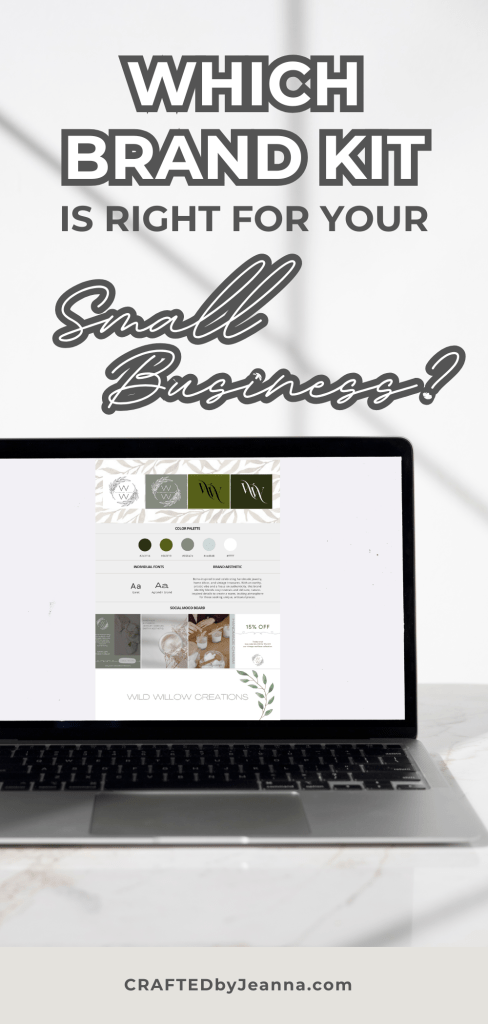
Before you design anything, create a Brand Kit inside Canva (you can do this with the free plan, but it’s much easier with Canva Pro).
Your Brand Kit should include:
- Your logo
- Color palette (3–5 core brand colors)
- Brand fonts (heading, subheading, body)
- Supporting elements (icons, patterns, or textures)
Bonus: Using Shopify or WordPress? These platforms also let you embed brand fonts and colors, so everything matches seamlessly.


Canva Branding Hack #2:
Use and Reuse Branded Templates
Choose 5–10 go-to templates for:
- Instagram posts
- Pinterest pins
- Email headers
- Product listings
- Sales graphics
Edit them ONCE with your colors, fonts, and logo—and save them in a folder labeled something like “My Branded Templates.”
Then every time you post something new, all you have to do is update the text and image. Done in minutes, not hours!
Canva Branding Hack #3:
Lock Elements to Speed Up Design
If you’re loosing your mind because you keep clicking on backgrounds or misaligning things..the “Lock” tool is your savior.
How to use it:
- Click the element you want to stay put (you can select multiple at once)
- Tap the 🔒 lock icon on the top bar
This is so helpful when designing product pins, email banners, or sales pages where structure matters!
Canva Branding Hack #4:
Use Magic Resize (Pro Only)
If you create content across multiple platforms, this tool is a massive time-saver.
What it does:
- Takes your design and resizes it for Instagram, Facebook, Pinterest, etc. in one click
No more redesigning from scratch!
Perfect for product sellers, bloggers, and coaches promoting one message in multiple places.
Canva Branding Hack #5:
Stick to 1–2 Fonts Max
I know the font options are endless (and fun to scroll through), but too many fonts is messy branding.
Stick to:
- 1 bold heading font (maybe something with personality!)
- 1 clean, legible body font (think Open Sans or Lato)
This keeps your brand looking clean, cohesive, and professional—even when you’re designing everything yourself.
Canva Branding Hack #6:
Use Custom Dimensions for Better Etsy/Shopify Listings
If you’re selling products on Etsy or Shopify, the right image size can make or break your listing.
Recommended dimensions:
- Etsy listings: 2000 x 2000 px
- Shopify banners: 2048 x 1024 px
- Pinterest pins: 1000 x 1500 px
Design with these dimensions from the start so you never have to crop weirdly later.
Canva Branding Hack #7:
Organize with Folders
Once you start creating graphics consistently, Canva can get cluttered FAST.
Create folders for:
- Templates
- Logos
- Product images
- Social content
- Seasonal campaigns
This super simple organization system saves you hours.
Canva Branding Hack #8:
Preview Everything on Mobile
This is SO IMPORTANT. Most of your audience is scrolling from their phones. Always preview your designs in Canva’s mobile view before downloading, especially if you’re designing:
- Instagram stories
- Highlight covers
- Sales graphics
- Pinterest pins
Tiny text? Cutoff image? Time to tweak! Better now than once already posted.
Let’s Recap
- First, create your brand kit
- Reuse branded templates
- Use the lock tool while designing
- Use Magic Resize for social posts
- Choose 1-2 fonts, max
- Use the right dimensions right away (Etsy, Shopify, Pins etc.)
- Organize with Canva folders
- Preview everything on mobile
Bonus Tips for Branding Your Small Business
Want your Canva graphics to actually help you sell more and grow your brand?
Here are a few pro-level branding tips to layer in:
- ✔️ Keep everything consistent (colors, fonts, tone)
- ✔️ Add your logo to everything—even your freebies
- ✔️ Use the same photo filters for a polished vibe
- ✔️ Save time with branded templates (or shop my custom kits!)
- ✔️ Optimize file names with keywords for SEO
Need help pulling it all together? I offer affordable branding kits, logo design, and custom Canva templates tailored for creators and small biz owners like you.
Ready to Design Your Brand Like a Pro?
If you’ve ever said “I’m not creative” or “I don’t know where to start,” I promise—you can do this. Canva takes the tech-stress out of branding, and these simple hacks take it to the next level.
📌 Save this Post for Later!
Don’t forget to…
- Pin this for easy reference
- Subscribe to my email list for branding tips that actually help
- Share with your biz bestie who’s stuck on their logo
You’ve got this, and I’ve got your back.
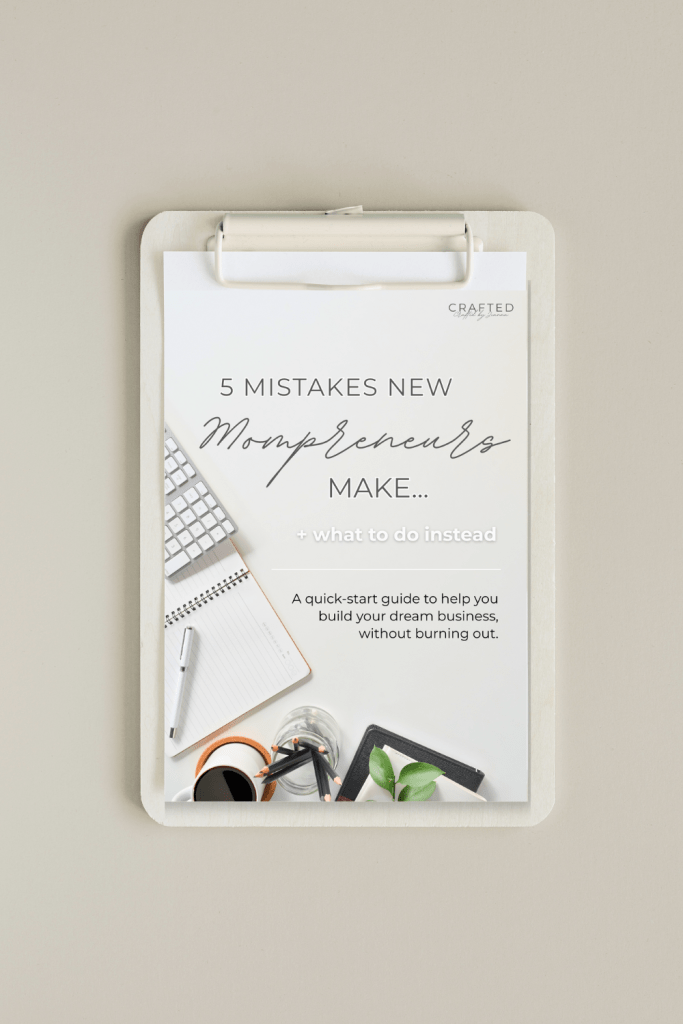
💌 Want more support?
- Shop my branding kits on Etsy → CRAFTEDbyJeanna
- DM me on Instagram @CRAFTEDbyJeanna
- Email me anytime at CRAFTEDbyJeanna@gmail.com
- Contact me through the form below 👇



 CRAFTEDbyJeanna
Leave a reply to How to Build a Brand That Grows With You (Even If You’re a One-Woman Show) – CRAFTEDbyJeanna Cancel reply